 OfficeSwap
Offices Shouldn't Sit Empty: How OfficeSwap Works

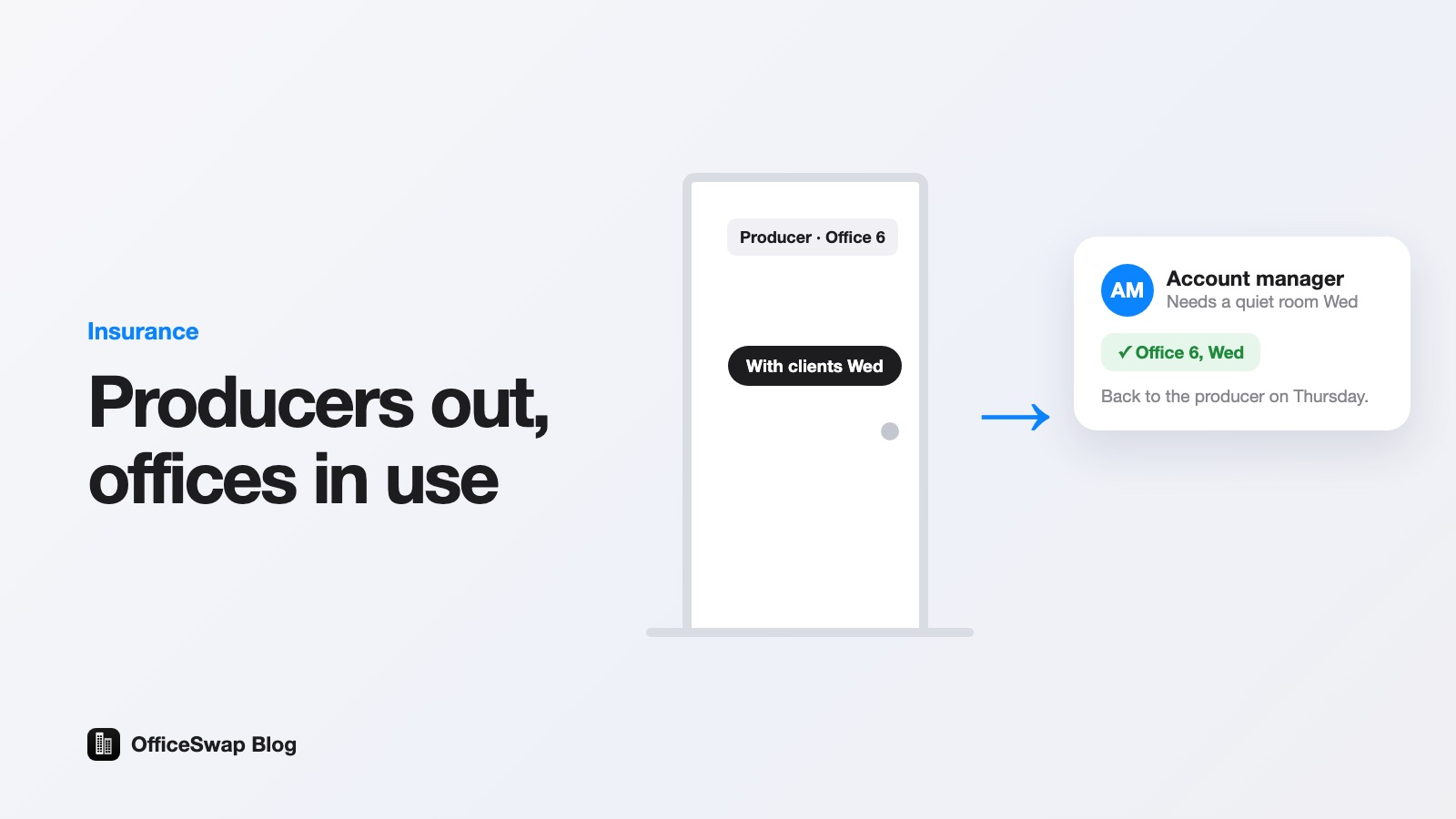
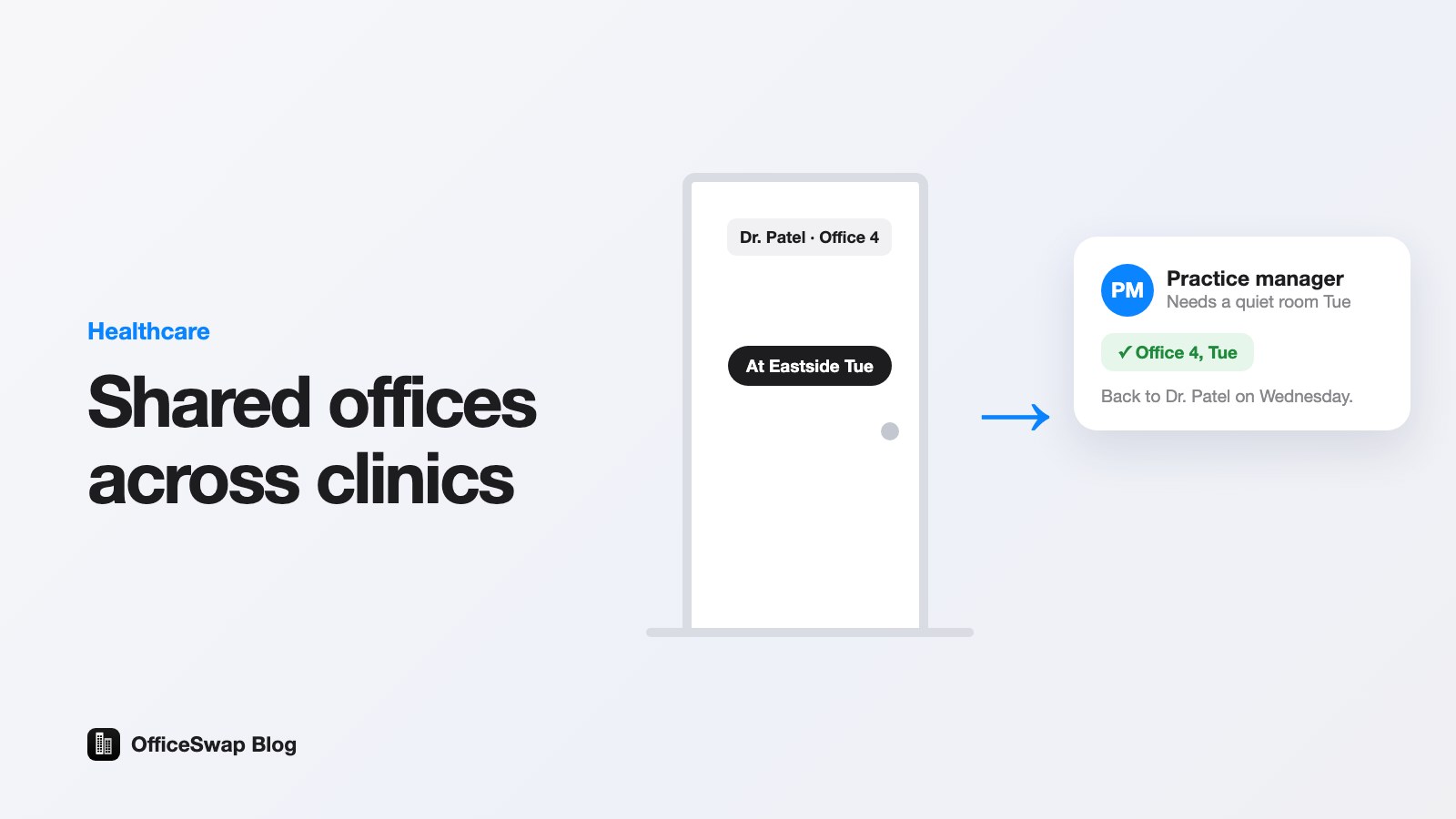
Walk through almost any firm with private offices on a Wednesday and you'll see closed doors and dark rooms. Someone is travelling. Someone works from home on Fridays. Someone is on leave for two weeks. Their office sits there, paid for and unused.
Meanwhile, a colleague visiting from another city has nowhere to sit, and an associate without an office is hunting for a free room.
The usual fix is an email chain: "Is anyone using their office Thursday?" It works until it doesn't. Nobody remembers who said yes, and the person who owns the office never gets asked at all.
I built OfficeSwap to replace that email chain.
I kept coming back to one question: why do we pay for offices that sit empty while someone else hunts for a place to sit? It felt like the kind of problem software should quietly solve, so I built it.
The idea
OfficeSwap is an app (iPhone, iPad, Apple Watch and the web) where people who have an office can offer it for the days they're away, and people who need one can request it. The app matches them automatically.
It runs on one simple rule: first come, first served. If an office is free on the days you ask for, it's yours right away. If not, you join a waitlist, and the moment someone offers an office on one of your days, it's assigned to you. You don't have to check back. If you're curious about the reasoning, read how OfficeSwap keeps every office fair.
Booking an office takes three steps
- Tap Request an office. You'll find it on the Board, the home screen.
- Pick your days. Tap the days you'll be in.
- You have an office. It's assigned automatically, and you see exactly which office you have for each day.
Need to change your mind? Open the Plans tab and swipe to cancel. Whatever you free up goes to the next person waiting. The full walkthrough is in how to request an office.
Offering your own office
If you have an office and you're away, tap Offer my office, choose your days, and add a note for whoever uses it (where the monitor cable is, say). It's only shared on the days you pick. You keep it every other day, and you never lose it. See how to offer your office.
See who's in, and what's free
The Board shows who's in, who's visiting from another location, and which offices are free, for today and the weeks ahead. Switch to the floor plan and OfficeSwap draws your offices in 3D, floor by floor, with free offices in green and visitors in blue. You can upload your own floor plans too, or skip that and let OfficeSwap draw one from your office list.
Or just send an email
Not everyone wants another app. So you can also email book@officeswap.co, or copy it on an email you're already sending:
- "I'll be in the New York office Tue-Thu next week." OfficeSwap requests an office for those days.
- "I'm out Friday." It offers your own office to a colleague.
- Reply "undo" within a day, and it puts the last change back.
It replies with exactly what it did. It's for people who've verified their work email, only your own days change, and your admins' booking rules and closed days still apply.
What admins get
Whoever runs the office gets one place to see how every office is used, and to keep things fair:
- Insights: desk-days shared, requests filled, the busiest days, and a forecast for next week, with PDF and CSV export. See office analytics for admins.
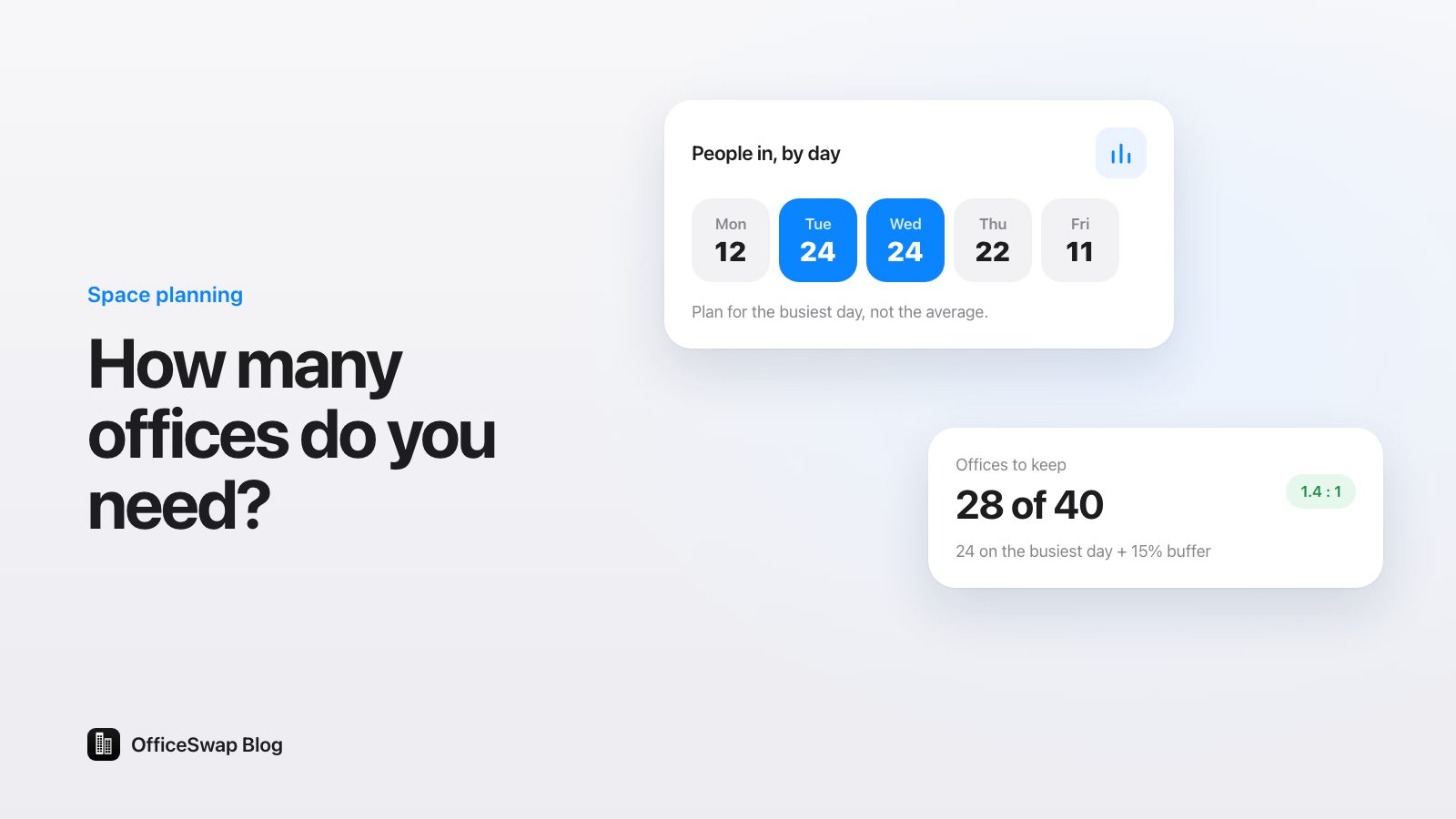
- Office savings estimate: how many offices you list, how full they are, and how many you might release, worked out from your own booking data. Use it as a starting point, not a promise.
- Booking rules: limit how many days people can book in a week and how far ahead.
- Closed days: close the office for a holiday so nobody can request or offer that day.
- Verification: optionally have people confirm their work email, so every name on the board is a real colleague. See how verification works.
- Slack and Teams: a morning summary of the day's office use in the channel you already read.
Admin tools sit behind an admin code plus a second code emailed to an admin address, so knowing the code alone isn't enough.
Private by design
Only people with your organization's access code can see your schedule. There are no ads and no tracking across other sites, and the app works in 20 languages. Offices are only ever shared inside your own organization.
What it costs
Joining an organization is free for everyone. Setting up an organization is a monthly subscription with a 30-day free trial, sized only by how many desks and offices you list. Employees and office locations are always unlimited. Plans run from $299 a month (up to 19 listed workspaces) to $1,999 for 250 or more, billed monthly with no annual contracts. The details are in pricing plans explained.
Try it
Register your organization at officeswap.co/start, get your access code right away, and add your offices by typing them in or scanning a printed staff list with your phone. You can also look around first in the demo at officeswap.co/app with the code DEMO.
If you run an office or an operations team, I'd love your honest feedback.
From the OfficeSwap blog: officeswap.co/blog/offices-shouldnt-sit-empty/