 OfficeSwap
Verified Coworkers: How OfficeSwap Confirms Who's Who
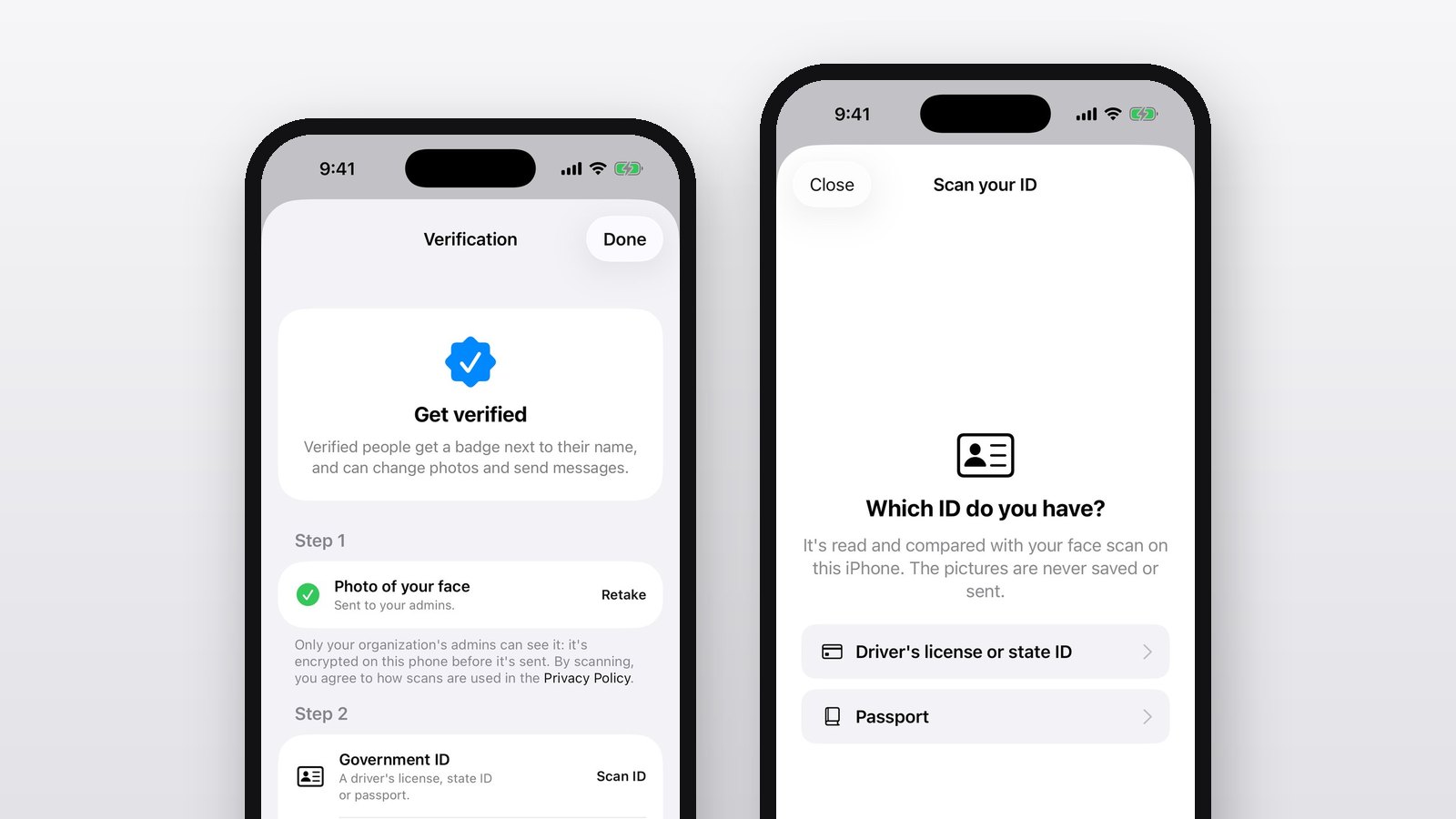
When you hand someone your office for the day, you want to know who's walking in. When a message arrives from "Sarah in accounting," you want to know it's really Sarah. Office sharing runs on trust, so OfficeSwap now confirms that people are who they say they are.
What the verified badge means
A blue badge next to someone's name means two things were checked:
- A 3D face scan. On iPhones with Face ID, OfficeSwap uses the same TrueDepth camera to map your face in 3D while you slowly move your head and blink. A photo or a screen held up to the camera can't stand in for you. On iPhones without Face ID, it takes a photo instead.
- A confirmed work email. You enter an address at your company's domain, like [email protected], and open the link we send on the same iPhone. That proves you work there.
The badge needs both. It shows up everywhere your name does: on the board, in chats, in the member list and on your profile.
What verification unlocks
Until someone is verified, they can still request and offer offices, but they can't send messages or change photos. That keeps the two things anyone could misuse, talking to coworkers and putting up pictures, in the hands of people the organization knows are real.
Only your admins can see the scan
A face scan is personal, so we designed it so almost nobody can see it:
- It's encrypted on your iPhone before it's sent, with a key that comes from your organization's admin code.
- Only someone who knows that admin code can open it. We can't, and neither can Google, who stores it, or anyone else in your organization.
- It's never used for face recognition, never compared with anything and never sold. It's there so an admin can turn it around in 3D and check it's really the person with that name.
- It's deleted when an admin rejects it, when you take a new one, or when your organization is deleted.
The full details are in our Privacy Policy.
What admins see
Admins open Settings, then Verification. There they set the company's email domains (the one entered at sign-up is already there), see who has scanned their face but hasn't confirmed their email yet, and can tap anyone's name to see their scan in 3D. A swipe rejects a scan or removes a badge. A red number on Settings shows when people are partway through.
Getting verified
- Open OfficeSwap. If your organization uses verification, you'll be asked once, and a card on the board reminds you until you're done.
- Tap Start scan and follow the circle: look straight ahead, move your head slowly until every mark around it turns blue, then blink.
- Enter your work email and tap the link we send, on the same iPhone.
That's it: your badge appears right away.