 OfficeSwap
The OfficeSwap Admin Guide: Requests, People, Rules and Office Health
OfficeSwap mostly runs itself: people offer their office when they're away, colleagues request one when they're in, and the waitlist fills in on its own. But every office has someone who keeps it running, the office manager, the operations lead, the partner who "does the rooms." OfficeSwap 1.3 gives that person a proper set of tools.
Becoming an admin
When your organization registers, it gets an admin code alongside the access code everyone uses. In the app, go to Settings, then Unlock admin tools, and enter it. You'll get an Insights tab and three new groups in Settings:
- Manage: Insights, Requests, People, Closed days, and Booking rules and alerts.
- Tell everyone: Announcement, and Slack & Teams.
- Who can do what: Verification, and View-only access.
Keep the admin code to the people who need it. Admin tools can only be used on phones that entered it, and our servers check that before any admin change is saved.
Requests: see every ask, and step in
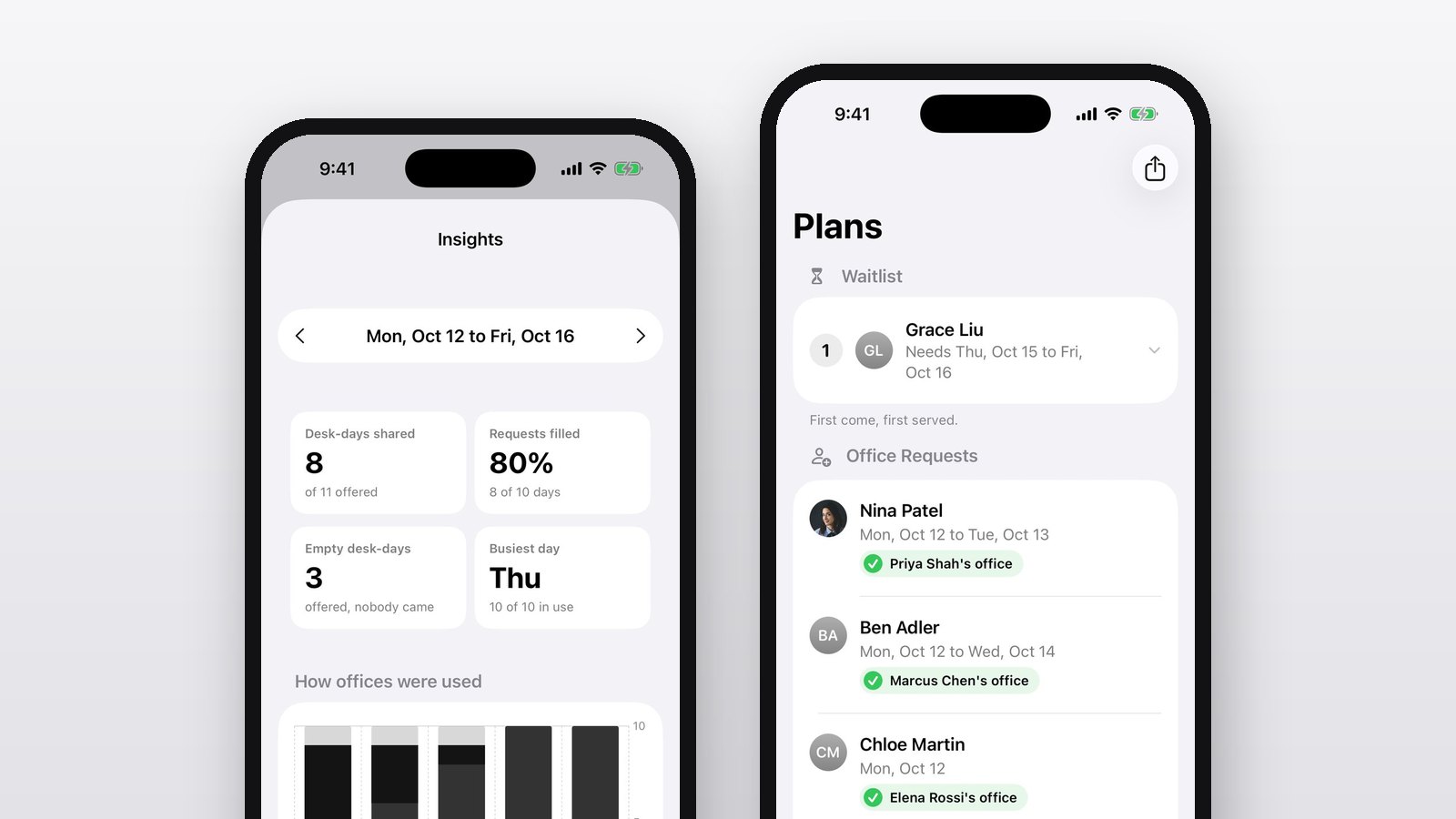
Requests lists every requested day from today on, grouped by day. Switch to Waiting to see only the people who haven't got an office yet. Tap anyone to give them a free office yourself, or to cancel a day on their behalf (handy when someone's out sick and forgot to free their spot).
If no office is free that day, OfficeSwap says so, and the person stays in line for the next one that opens up.
People: one name per person
Over time, lists drift: "Jon" and "Jonathan," a typo, someone who left. People lets you search everyone, rename a person, merge a duplicate into the right name (everything under the old name moves across), or remove someone who no longer works there.
Booking rules and alerts
When offices are scarce, a few early birds can book a month of Tuesdays. Booking rules keep things fair:
- Days per week: how many days each person can ask for in a week.
- Weeks ahead: how far ahead people can ask.
Requests already made stay as they are, and people see the rule right in the request sheet, so nobody is surprised.
Turn on admin alerts and, on Monday mornings, admins get a notification when an office sat empty all of last week, or when people asked for an office and didn't get one. Those are the two things worth acting on.
Closed days
Mark holidays, office moves or building closures in Closed days. Nobody can book them, and they don't count against anyone's numbers in Insights.
Announcements
Need everyone to know the fourth floor is being painted? Post an Announcement. It's pinned at the top of Messages and the Everyone chat for two weeks, or until you post another, and with notifications on, everyone's phone gets it right away.
For teams that live in chat, Slack & Teams posts new bookings to a channel and sends a summary of who's in every weekday at 8 AM.
Office health and next week's forecast
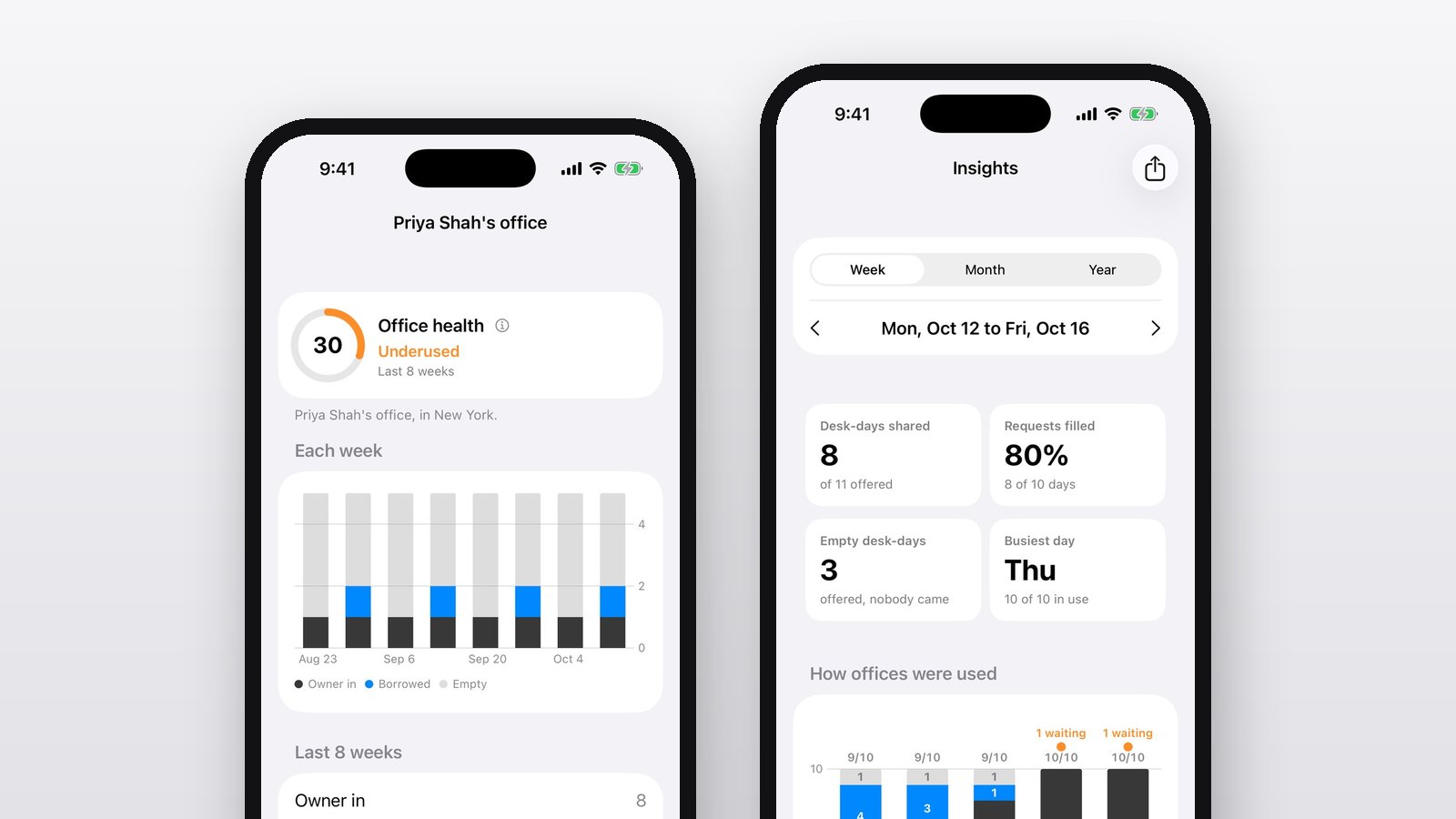
Insights already shows how a week went: desk-days shared, requests filled, empty desk-days and the busiest day (see Office Analytics for Admins). 1.3 adds two things:
- Office health: every office gets a score out of 100, the share of the last eight weeks' workdays it was in use, whether its owner was in or someone borrowed it. Days it was offered and nobody came count against it; weekends and closed days don't count. Offices are labeled well used, partly used or underused, least used first, with a suggestion for each.
- Next week's forecast: how full each day next week is likely to be, from last week, this week and the requests and offers already made.
Need it in a report? Export from Insights gives you a PDF and a CSV, ready to share.
View-only access, for managers
Some people want the numbers without the keys. In View-only access, make a code and share it. Anyone who enters it in Settings gets the Insights tab and nothing else: they can't change settings, people or anyone's photos. Make a new code, or turn it off, and everyone who used the old one loses Insights.
Verification
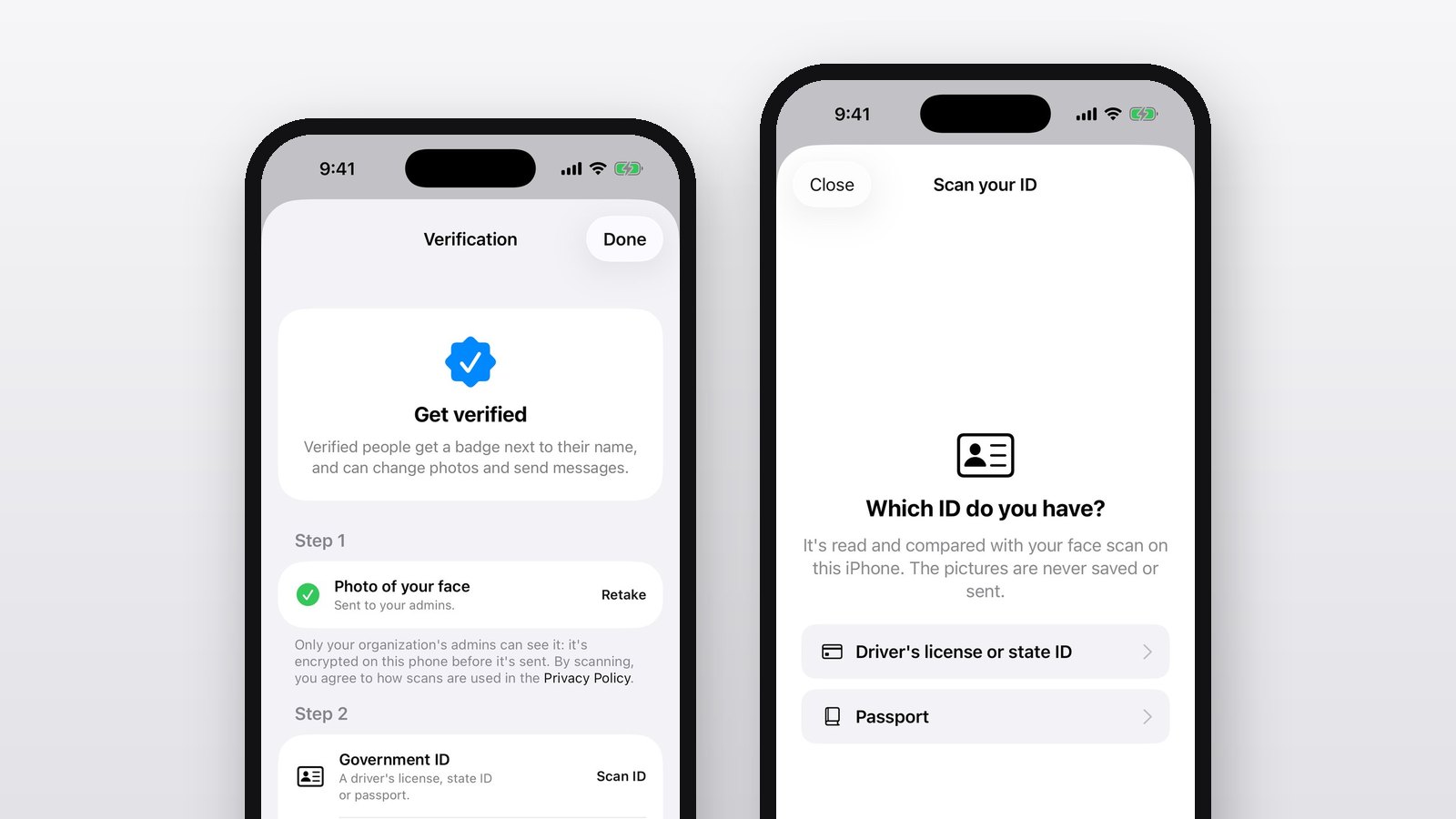
Admins choose whether people need a verified work email, and for what: requesting offices, offering one, sending messages or changing photos. You set your company's email domains and see who's verified. How verification works.
On the web, too
Booking rules, announcements, closed days, verification and Insights are also on the web dashboard at officeswap.co/app, so you can run things from your desk. New to all this? In the app, Settings, then Watch the admin tutorial, walks through it in a couple of minutes.